

Chengdu J-10S
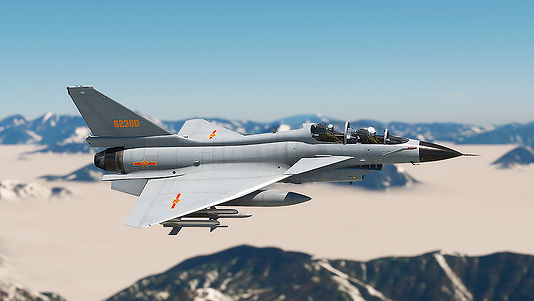
Fly the Chengdu J-10S, the two-seat, tandem version of the Vigorous Dragon designed for training and leading strike missions with the same footprint as the J-10A. With a delta wing, canards, and a top speed approaching Mach 1.8, it combines agility and fine control in high-angle-of-attack maneuvers. The J-10S entered service in 2006, shortly after the two-seat model was certified, featuring an enlarged backbone to accommodate avionics and allow the rear crew member to act as WSO in air-to-ground and air-to-air missions. For simulation, our J-10S arrives tuned for responsive flight, interactive systems, and 4K PBR textures—mission-ready. It will come with 18 liveries for you to choose from and fly.
Available in MSFS 2020/2024!




When you start on the runway, your aircraft will be ready for flight. When starting cold and dry, consider pressing the STARTER button on the MFD screen in front of you. Wait 1 minute for the engine to fully start and monitor the EICAS (first screen on the left panel) as the engine RPM and temperature increase to the ideal level. Meanwhile, you can experiment with the Chocks or GPU display. The takeoff run should be smooth, and the aircraft will take off without difficulty using the electronic flight management system.
Using the Autopilot is simple, but requires prior guidance: you must click on the desired function before starting to type. Use the ENT buttons to confirm what you've typed or CLR to clear and type again. It's always necessary to click on the desired function before typing. Consider always starting to configure your AP by maintaining altitude, so first press the ALT button and then enter the desired value, and press ENT if the final value has less than 4 digits. Above 5 digits, the value is automatically applied by the AP. Next, set your desired speed or HDG, or even GPS navigation mode. If you want to remove speed control, click the A/T button in the upper right corner of the screen. Consider using the VS+ and VS- buttons to interact with climb mode.
IMPORTANT: Avoid using Mach control during climbs to avoid constant acceleration and deceleration; During the climb phase, if you want to use A/T, use the normal SPEED control, in knots, and after stabilizing your altitude, change to Mach if you wish.
The radio screen works similarly: click on the frequency type you want to change (COMM 1 or XPNDR) and enter the desired frequency, pressing ENT when finished, or CLR to clear your entry.
The flight model provides that above 300 knots, the speedbrake will automatically engage if the thrust lever is at zero, to facilitate speed reduction at critical moments. The speedbrake will also automatically engage during landing if the parking brake is activated upon touching down. It is still possible to manually engage it at any stage of flight, but under any of the above conditions, its engagement and retraction will be automatic.
Its MDF panel displays local time, landing gear status, navigation light status, and flap status. Upon landing, your speed should be around 190-220 knots, due to the aircraft's delta-shaped design.
The cockpit's Quick View (5) is a fixed camera on the exterior of the aircraft with a HUD, for tactical flight similar to aerial combat games.

EICAS DISPLAY
WEAPONS
FUEL
STARTER
HSI
AIRCRAFT STATS
FAQ
There were several reports from users of unusual situations, but with a similar report: it was impossible to control the boat / the boat stalls in a certain direction - this is not a problem linked to the Add-On itself, but a missing setting in the game standard for more experienced simulations. Piloting assistants disable some features that break the mobility of boats in the water and cause situations where users cannot navigate - and unfortunately they end up, without knowing the reason, blaming the Add-On for this. These images show a recommended configuration for navigating with a keyboard, joystick or other external control hardware, bearing in mind that some of these hardware (especially those with a landing gear lever) may present unusual or unexpected situations due to the nature of the hardware - already that it was designed for runways and airplanes. Any questions, unusual or unexpected situations you face, please contact me via email for assistance.


