

CARGO SHIP
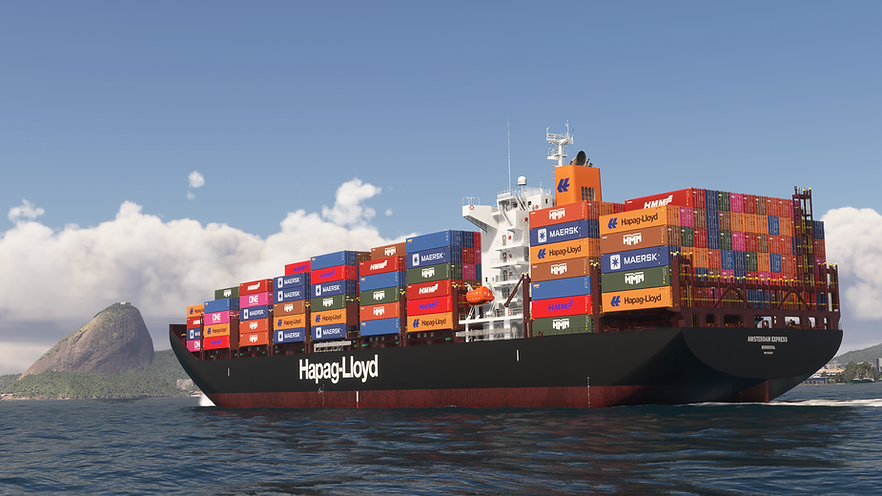
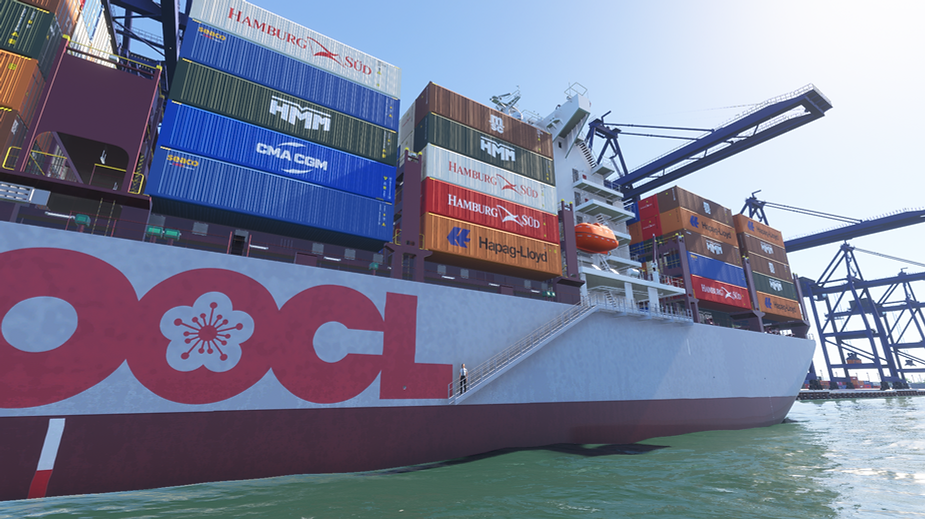
The time has come to experience the most complete nautical adventure that Microsoft Flight Simulator has to offer! Meet the Cargo Ship—a Feeder 3-class container vessel with a capacity of 2,086 TEUs. Every container has been modeled, including those below deck; they can even be offloaded upon arrival at port using the ship’s management system located on the bridge. The bridge features fully functional panels and systems, including an autopilot, cruise speed control, and comprehensive vessel management—plus, most importantly: tugboats! You can call upon a harbor pilot to assist with docking maneuvers at your chosen pier, or use them to undock and position the ship in any direction you desire. Experience navigation enhanced by new water-friction physics, along with a simulation of engine failure under high-stress conditions. The ship is highly detailed, complete with crew members stationed on the bridge and in other strategic areas. The package includes 25 ports from around the world, featuring 62 individual berths where you can begin your journey or dock your vessel upon arrival—with more ports planned for future updates. Choose from 14 liveries representing renowned shipping lines such as Maersk, CMA CGM, and ONE, as well as historic names like Hamburg Süd and Hanjin, among others. Future updates will expand the selection to a total of 100 ports and 25 liveries.
Enjoy the voyage!
Available soon in MSFS 2020/2024!
*The images below are photorealistic renderings, based on the 3D model used to carry out the project.. To see the real images of the game on Xbox/PC, access the link above.




Start the game anywhere in the world on the water, on the seaport or seaplane track, don't forget to check the START ON GROUND option in the flight selection menu before the game starts; In the port selection menu, choose to start at DOCK 1, DOCK 2, or DOCK 3. Depending on the port, there may be one, two, or three docks available. Starting at a dock means your ship will begin the game moored at the pier, while starting anywhere else in the water means your ship will begin the game at anchor. Select "UNDERSTOOD" in the panel message to allow yourself to raise the anchor by setting the FLAPS to 0.
ALWAYS use tugboats when leaving the port. This ensures a safe maneuver and positions your vessel in the direction of your choice. If you begin the game moored away from the dock—for instance, in open water—make sure to weigh anchor by deactivating the FLAP. NEVER sail with the landing gear deployed. From the very start of the game, ensure the landing gear remains retracted, just as it would be during flight. ALWAYS navigate with the autopilot engaged to avoid changes in direction caused by wind or waves.
IMPORTANT: Never leave the ship without first activating the anchor and the pier. Sometimes, leaving the ship (Control + C on the keyboard) can take you to an unknown position below or inside the ship. This error occurs because the position reading file to activate the character's spawn does not always place the character in the correct position. This has been configured several times, but in some tests the user may experience the spawn below or inside the ship. Understand that this will be improved and corrected in the future. If you start below or inside the ship, walk to the right, towards the pier that you will climb until you reach ground level (pier) and you can then enter the ship through the ramp.
To make the ship more accessible when using the "walk-around" feature, there are access stairs on both sides of the vessel—accessible from the deck and from the water. On the port (left) side, the stairs may terminate at a height suited for a pilot boat or a pier; however, there is an invisible, functional "virtual ramp" that allows you to ascend from that point.
IMPORTANT: The 3D collision mesh—which enables walking—includes boundaries for railings and walls that extend 50cm beyond the actual 3D geometry of the ship’s stair railings and corridors. Furthermore, the collision mesh for the stairs follows the same incline as the physical stairs themselves. Despite this, there is a possibility that the game may fail to recognize the data correctly or interpret it in an unintended way. This issue has been reported to MS/Asobo, and we expect a definitive solution from them soon. In the meantime, please refrain from submitting bug reports regarding walking around the ship; this is not a product defect—the 3D collision mesh is indeed present throughout the entire vessel.
IMPORTANT: JUST AS YOU WOULD NOT DO IN REAL LIFE, DO NOT GO OUT IN THE SEA WITH WAVES HIGHER THAN 30 KNOTS (55 KM/H) AT THE RISK OF CAPSIZING THE BOAT AS IT WOULD HAPPEN IN REAL LIFE.
DURING THE SIMULATION, THE SINKING OF THE BOAT IS NOT DRAMATIC AND UNEXPECTED EFFECTS MAY OCCUR CAUSED BY THE SIMULATION ENVIRONMENT ITSELF AND NOT BY A PRODUCT DEFECT.
MSFS 2020/2024 does not have a realistic drift in the water, so navigation is still imprecise in several aspects. Do not expect extreme realism - the focus of this add-on is to provide a visual and enjoyable experience for those looking for alternatives to flying. Each instrument on the boat, livery and modeling was made with great care, affection and attention to detail to meet the highest commercial standards that MSFS and other markets demand, but for several other reasons that go beyond the developer, sailing with boats in MSFS is a challenge that is not always pleasant. Always keep in mind that everything was done to ensure that you have the best possible experience despite the limitations.


FAQ
There were several reports from users of unusual situations, but with a similar report: it was impossible to control the boat / the boat stalls in a certain direction - this is not a problem linked to the Add-On itself, but a missing setting in the game standard for more experienced simulations. Piloting assistants disable some features that break the mobility of boats in the water and cause situations where users cannot navigate - and unfortunately they end up, without knowing the reason, blaming the Add-On for this. These images show a recommended configuration for navigating with a keyboard, joystick or other external control hardware, bearing in mind that some of these hardware (especially those with a landing gear lever) may present unusual or unexpected situations due to the nature of the hardware - already that it was designed for runways and airplanes. Any questions, unusual or unexpected situations you face, please contact me via email for assistance.


